
Servicenow Procedure – Actions
PS1 Actions are extremely simple to set up. To add an action, start within the action properties and name the action PS1 [purpose] and ensure the action is in the correct application and under the correct category (don’t forget to type in a meaningful description). For the FPS platform a logical name would be PS1 Core for the core functions accessed on the server. This would equate to an internal name of ps1_core.
Following the properties, its on to creating the action input.

The input should be identical for each action in the PS1 set using a command to trigger an element in the switch and a “|” separated payload for input data. The label can be as descriptive as you may need, since these are the labels that will be presented when you test the action. I typically keep type to String or Boolean to keep things simple and have not ever really needed anything else given the style used.
Next I fill out the outputs.
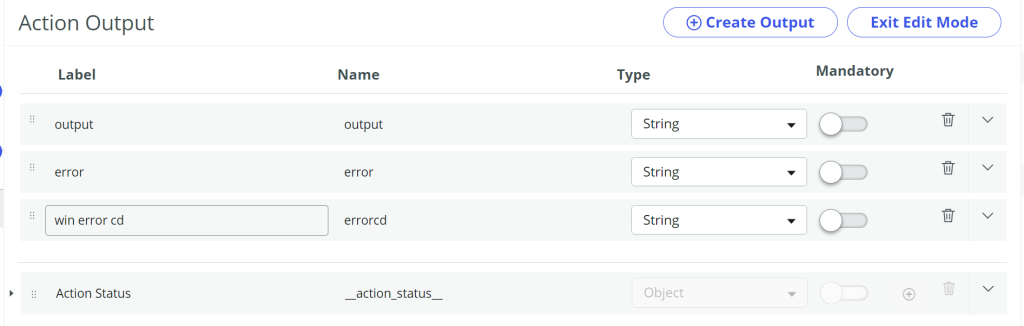
The output section should be identical for each PS1 action so the processing of the output is similar for the calling script include. When creating an output, the standard that I typically follow is:
| Label | Name | Type | Mandatory |
| output | output | string | no |
| error | error | string | no |
| win error cd | errorcd | string | no |
I don’t currently use Action Status. When dragging the output pills over (in Edit Outputs mode) I just match the pill with the associated label and everything stays orderly in the action.
Lastly is the powershell step.
For the Connection Details, I use “Use Connection Alias” for the connection and then specify the connection alias to use.
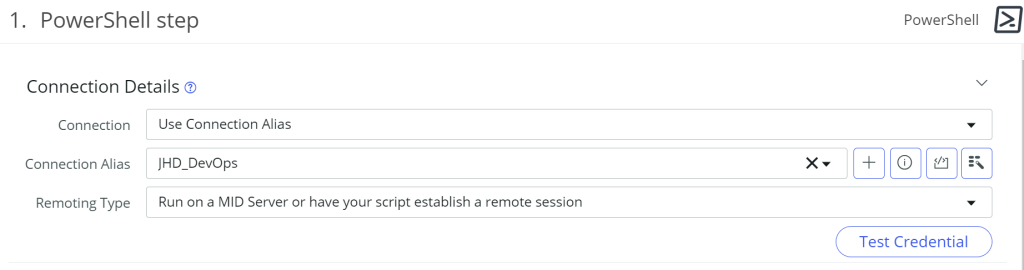
Make sure to name the connection alias something that is universal across all instances like [location]_DevOps. The MID server within the connection alia is likely going to have a unique name on each instance, but the alias should be the same on each instance. Then the last option is Remoting Type. For remoting Type I always select Run on a MID Server or have your script establish a remote session.
For Script Details I always use a Script Type of Inline script.
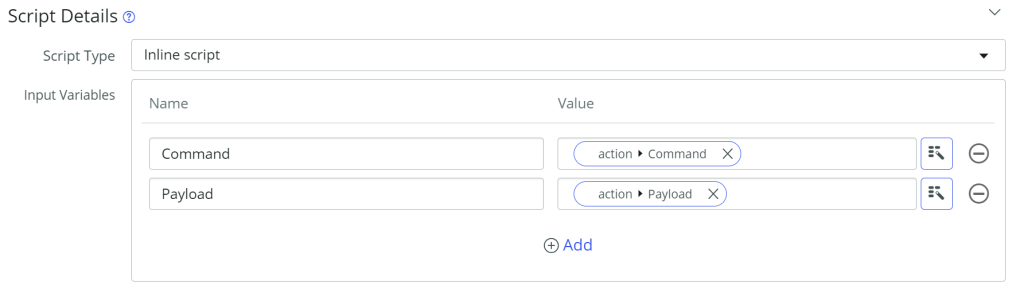
Input Variables have to match up to what was entered in the inputs area where the name is what is used within the script (unlike glidescript, case doesn’t matter). I like to make the name exactly the same as the -PARM used within the powershell call. Depending on the label structure of your inputs, the data pills should be relatively easy to match up with near exact or exact names. When a switch is involved as a parameter, this is always a true/false value and is handled through a powershell if or switch statement on the call.
For the command, I always use a compact style with very little logic. Although many write full powershell scripts within the action, I find that just entering “profile” information and then a switch to run a command already designed on the server is easier, and easier to debug. Below is an example script that has been thoroughly commented out to explain the logic. I always use a variation of the script at all time for simplicity purposes.
#******* Format to access Input Parameters *******

# To use variable, prefix with '$'. eg. $message
# Read more https://docs.servicenow.com/?context=CSHelp:IntegrationHub-PowerShell-Step

#******* Reserved variables available when remoting type is Run on MID

# $computer   Host IP resolved from Connection alias
# $cred       Credential Object. Credential resolved via connection alias or credential alias. This can be used in conjunction with any cmd-let which support credential parameter eg. New-PSSession -credential $cred
# $log_info   mid property "mid.property.powershell.log_info" set on instance to enable debugging. So it's a flag available to act on and add any verbose logging if they want to in their script

$global:CIRuntimeDrive = 'D:'
$global:AccessType='Action' # "Action" indicates that all output will be suppressed except for return values

<# There can be 1 or more family runtime directories on any particular instance.  The runtime will always be the last directory in the list below and can be derived by querying the entire drive for the FPS- entries and assigning the last in the list to $global:CIRuntime. #>

$FPSFamilyDirs = Get-ChildItem ($global:CIRuntimeDrive+'\FPS-*') | Select Name
$global:CIRuntime = $global:CIRuntimeDrive+"\"+$FPSFamilyDirs[$FPSFamilyDirs.length-1].name
$global:Family = ($global:CIRuntime.split("-"))[0].split('\')[1]
$global:FamilyRelease = ($global:CIRuntime.split("-"))[1]

<# Now that the root runtime directory has been established, set the core values that will be used in establishing the initial environment.#>

$global:MyMetadata = $global:CIRuntime+'\Metadata'
$global:MyInfo = $global:CIRuntime+'\Info'
$global:MyModules = $global:CIRuntime+'\Modules';
$global:MyShortcuts = $global:CIRuntime+'\Shortcuts'
$global:MyVolumes = $global:CIRuntime+'\Volumes'

<# The root paths are now set.  Take this data and construct the remainder of the core attributes. #>

. ("$global:MyMetadata\Instances.ps1")  # Provides unique core values for the current instance (all instance values are available)

if ($global:CIRuntimeDrive -ne $global:MyCI.CIRuntimeDrive) { $global:CIRuntime = $global:CIRuntime.replace($global:CIRuntimeDrive, $global:MyCI.CIRuntimeDrive) }

$global:CISource = $global:CIRuntime.replace($global:CIRuntimeDrive, $global:MyCI.CISourceDrive)

. ("$global:MyMetadata\Properties.ps1") # Assigns the core properties for the current instance (all instance properties are available)

. ("$global:MyMetadata\Locations.ps1") # Assigns the core root locations for the current instance (all instance locationss are available)

<# Load in the shortcuts to complete wiring up the environment #>
. ("$global:MyShortcuts\loadShortcuts.ps1")

<# Split the payload to the individual parameters associated with $Command #>
if ($Payload > '') {$spPayload = $Payload.split('|') }

<# Do the action called for from input #>
switch ($Command) {
    # Test for a global that is loaded on the endpoint
    AllModules { Write-Output ($global:AllModules)
                 break
    }

    # Test for a global already known by the action
    FamilyRelease { Write-Output ($global:FamilyRelease)
                    break
    }
}
NOTE: Before testing the action, ensure that the MID Server where the test will be performed is online and running.
To test the initial command, use the AllModules command as it will test the success of the loads to derive the value.

After the completion of the action, the output will have a comma separated list of all the modules within FPS.
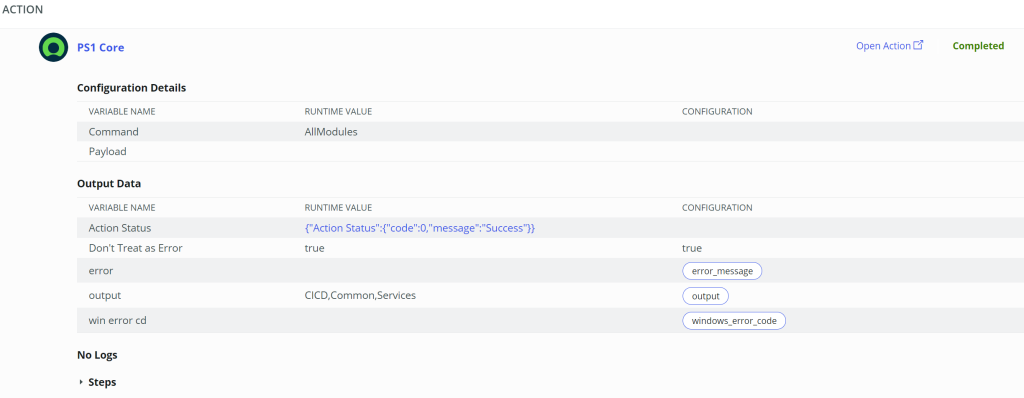
Once a successful test has completed, turn off the MID server on your developer site so it doesn’t cause problems with your runtime machine.