
FPS Procedure – Installation
1. Create your source and runtime root FPS directories. Suggested defaults are C:\Users\[uid]\OneDrive\FPS for the source directory and D:\FPS for the runtime directory.
2. Download the installation .zip to your source and runtime root FPS directories. Remove the *.jpg files from the runtime { Collections:Images } directory.
3. In the source FPS path, open { Metadata:profile } in the ISE editor
a. Alter the $global:AuthMembers on line 58 to account for all the authorized user IDs
b. Starting on line 85, fill out the information for each CoreCI within each supported domains
4. For each domain noted in the source FPS file { Metadata:Profile }, add a { Metadata:Pro-CIs-[Domain] } file for each (Metadata:Pro-CIs-DMN01 and Metadata:Pro-CIs-DMN01 are included for demonstration purposes.
a. Within the source { Collections:Images }, select a master image that you would like to use to hold your KeePass credentials. Note the unique number of the image (highlighted in green below) for use in step 4b.
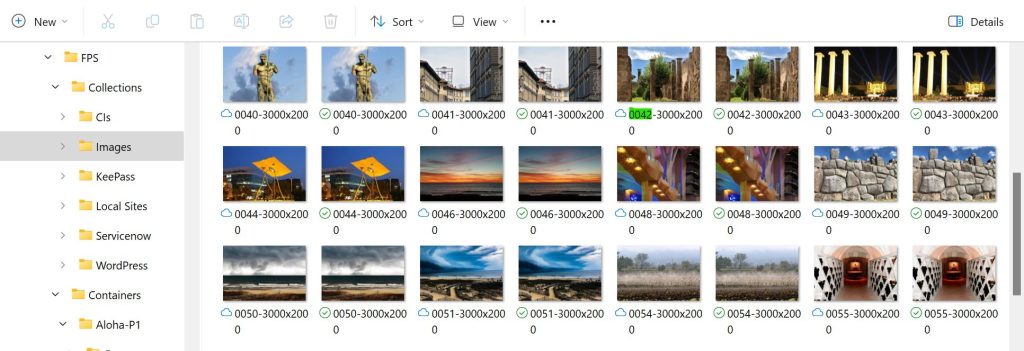
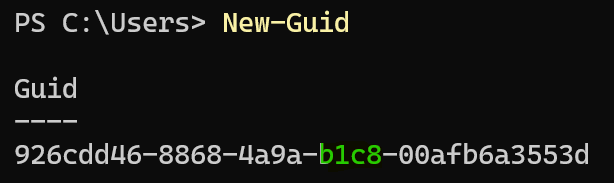
b. For each CI within all { Metadata:Pro-CIs-[Domain] } files, create a new guid (simply enter New-Guid in a powershell UI) for each replacing the 4th guid set (highlighted in green below) with the unique 4 digit Image filename number (0042 above)
Note: Pick an image that is at least 5 images from the last image so several automations can leverage the remainder for tasks and actions.
5. From an administrator CMD prompt, enter:
copy [source drive]\FPS\Metadata\profile.ps1 C:\Windows\System32\WindowsPowerShell\v1.0\profile.ps1
6. Start a Powershell session and load the initial version of the Authorized Members via the following:
if (Push-NeededFor Put-AuthMembers) { . (Get-ActiveFileNm -PS1 Put-AuthMembers) }
$Testing = $False
if ($Testing) {
    Put-AuthMembers -Testing
} else {
    Put-AuthMembers
}
You now will have the ability to configure the remainder of the system.
7. Load the KeePass application using the default load values/locations.
8. Your starter KeePass database is located at [Source Drive]\FPS\Collections\KeePass\KPDB.kdbx and has the password of FoundationalOps. Open this database through the KeePass UI and change the password. Then configure this password by entering:
if (Push-NeededFor Put-KeePass) { . (Get-ActiveFileNm -PS1 Put-KeePass) }
$Testing = $False
if ($Testing) {
    Put-KeePass -PWD "[New Pwd]" -Testing
} else {
    Put-KeePass -PWD "[New Pwd]"
}
The master KeePass password has now been configured and you can now use the KeePass functionality within Foundational Ops.