

KeePass – Initial Buildout
By j.dickey | Published | No Comments
First and foremost KeePass is the heart of FPS and the API’s used will be tuned to operate within the FPS archecture with ease. There will be a Call/Core structure that is typical with most of my work with the call elements being shortcuts. Due to the complexiy and shear number of shortcuts/CmdLets used by KeePass, there will be a three part buildout of the KeePass API where the first (this blog) is just a build to get all the pieces working. There will likely be a lot of deficiencies in the code, but those will be tidied up during the other two buildouts. Given that it is the first of 3 buildouts, it will likely be the most difficult to follow as it resembles a chronology of events instead of a coherent flow.
The second buildout will focus on practical use such as designing scripts that process excel csv’s and such. This blog will in a readable form that you may want to skip to to get a better understanding of KeePass in the environment. The third, and final, buildout will place the finishing touches on the code for its FPS Aloha release.
The standard database location for KeePass will be at {Collections:KeePass:KPDB} and the default master password is “FoundationalOps”. Within GIT, the KP API is a 38 CmdLet set. I plan to first redefine the access to the DB and then re-constitute most of the CmdLets so that they will be specialized for the Foundational Ops solution. The first thing we want to do is connect to the database, so I’m going to concentrate on those CmdLets first.
To initialize the KeePass API for use, the following directives need to be included in the opening script:
[System.Reflection.Assembly]::LoadFrom('C:\Program Files\KeePass Password Safe
2\KeePass.exe') | Out-Null

[KeePass.Program]::CommonInitialize()
After initialization, the assembly is ready for use. Then to end the process, enter
[KeePass.Program]::CommonTerminate()
So here is the first shortcut we are going to work on. I adapted the original example to get started with.
[System.Reflection.Assembly]::LoadFrom(‘C:\Program Files\KeePass Password Safe 2\KeePass.exe’) | Out-Null
[KeePass.Program]::CommonInitialize()

$kpPath = $global:pro_CI.SourceDrive+‘\FPS\Collections\KeePass’
cd $kpPath
$kpPwd = ‘FoundationalOps’
$ioc = [KeePassLib.Serialization.IOConnectionInfo]::FromPath($kpPath+‘\KPDB.kdbx’)

$ck = New-Object KeePassLib.Keys.CompositeKey
$kp = New-Object KeePassLib.Keys.KcpPassword @($kpPwd)
$ck.AddUserKey($kp)

$pd = New-Object KeePassLib.PwDatabase
$pd.Open($ioc, $ck, $null)

$pei = New-Object KeePass.DataExchange.PwExportInfo @($pd.RootGroup, $pd)
$iocOut = [KeePassLib.Serialization.IOConnectionInfo]::FromPath($kpPath+‘\ExportToXml.xml’)

$ffp = [KeePass.Program]::FileFormatPool.Find(‘KeePass XML (2.x)’)
if($ffp.SupportsExport -and $ffp.TryBeginExport()) {
      $s = [KeePassLib.Serialization.IOConnection]::OpenWrite($iocOut)
      $ffp.Export($pei, $s, $null) | Out-Null
      $s.Dispose()
}

$pd.Close()

[KeePass.Program]::CommonTerminate()
After this was operational, a shortcut to pull the DB contents would be useful to test the initial open/close process which will be an extract of the DB to XML – SC-KPXML. So by looking at this prototype I’ll need a number of locational entries and I’ll need a method to store the KeePass password using a method that is not KeePass. In the past I wrote a password subsystem that stored an encrypted pwd in the registry, but I’ll change it up a bit and save the info in a collection data file. The file when placed in a shortcut will be broken up into three sections. The first section being initialization and opening after being normalized for the FPS environment will be SN-OpenKP:
$overrideSnippet = ‘SN-OpenKP’
. (Get-ActiveFileNm -PS1 Initialize-DataResources-Locations)

[System.Reflection.Assembly]::LoadFrom($drcLoc_KPexe) | Out-Null
[KeePass.Program]::CommonInitialize()

$ioc = [KeePassLib.Serialization.IOConnectionInfo]::FromPath($drcLoc_KPDB)

# This needs to be codified.
$kpPwd = ‘FoundationalOps’
$ck = New-Object KeePassLib.Keys.CompositeKey
$kp = New-Object KeePassLib.Keys.KcpPassword @($kpPwd)
$ck.AddUserKey($kp)

$kpDB = New-Object KeePassLib.PwDatabase
$pd.Open($ioc, $ck, $null)
The middle section, which will be code within SC-KPXtract will be:
#region KP Init

. (Get-ActiveFileNm -PS1 Initialize-DataResources-Locations)

. (Get-ActiveFileNm -PS1 OpenKP)
if (Test-Path $drcLoc_KPXML) { Remove-Item $drcLoc_KPXML }
#endregion KP Init
#region KPXtract Shortcut
$pei = New-Object KeePass.DataExchange.PwExportInfo @($kpDB.RootGroup, $kpDB) $iocOut = [KeePassLib.Serialization.IOConnectionInfo]::FromPath($drcLoc_KPXML)
$ffp = [KeePass.Program]::FileFormatPool.Find(‘KeePass XML (2.x)’)

if ($ffp.SupportsExport -and $ffp.TryBeginExport()) {
    $s = [KeePassLib.Serialization.IOConnection]::OpenWrite($iocOut)

    $ffp.Export($pei, $s, $null) | Out-Null

    $s.Dispose()

  }
#endregion KPXtract Shortcut
#region KP Close
. (Get-ActiveFileNm -PS1 CloseKP)
#endregion KP Close
Then the last section will be SN-CloseKP
$kpDB.Close()

[KeePass.Program]::CommonTerminate()
That was a rather simple shortcut to write, except for the fact that we have to encode the password to the master KeePass database. This will take two utility CmdLets to solve and I’ll place them on the private side of DataResources because these CmdLets are solely internal CmdLets {DataResources:Private:Get-KeePass} and {DataResources:Private:Put-KeePass}. The Key element list is stored within {Collections:KeePass}.
There has been a lot of refinement while designing the code and the following is what I came up with:
# Put-KeyPass.ps1

$key  = “QaHGt65VX79773io”
$textPassword = “securekey-textpassword”

$securePassword = ConvertTo-SecureString $textPassword -AsPlainText -Force

$secureKey = ConvertTo-SecureString $Key -AsPlainText -Force
$encryptedKey = ConvertFrom-SecureString $SecureKey -Key (1..16)
$encryptedPassword = ConvertFrom-SecureString  $SecurePassword -SecureKey $SecureKey

Write-Host “Key: $Key“
Write-Host “Text Password: $textPassword“

Write-Host “Encrypted Password: $encryptedPassword“
Write-Host “Encrypted Key: $encryptedKey“

# Get-KeyPass.ps1
$key = “”
$textPassword = “”
$encryptedPasswordFromFile = “”
$encryptedKeyFromFile = “”
$secureDecryptedPassword = “”
$BSTR1= “”
$BSTR2= “”

$secureDecryptedKey = ConvertTo-SecureString $encryptedKey -Key (1..16)
$secureDecryptedPassword = ConvertTo-SecureString  $encryptedPassword -SecureKey $secureDecryptedKey

$BSTR1 = [System.Runtime.InteropServices.Marshal]::SecureStringToBSTR($secureDecryptedPassword)
$textPassword = [System.Runtime.InteropServices.Marshal]::PtrToStringAuto($BSTR1)

$BSTR2 = [System.Runtime.InteropServices.Marshal]::SecureStringToBSTR($secureDecryptedKey)
$key = [System.Runtime.InteropServices.Marshal]::PtrToStringAuto($BSTR2)


Write-Host “Key: $key“
Write-Host “Text Password: $textPassword“

Write-Host “Encrypted Password: $encryptedPassword“
Write-Host “Encrypted Key: $encryptedKey”
I think I can live with this as a simple point solution for accessing the KeePass DB in order to push forward. Get-KeePass was bound into SN-OpenKP and obsoleted but still exists as an example utility in Aloha-P1. Access is now set, so lets work on some of the utility functions.
The KeePass DB (KPDB) will be set up as follows:
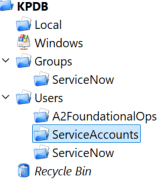
The end game is to design KeePass as an AD complement/replacement for authorization (ADFS should still remain in place for authentication) that can be integrated with ServiceNow in the Bermuda release of Foundational Ops. For the Aloha release we will need to add a 3rd class of user being Users:ServiceAccounts (highlighted above). This group will maintain all of the service account information that will be used in WordPress and FoundationalOps and will be the focus for the Aloha version of the code. I may also extract the demo users from ServiceNow to test with. {DataResources:KPXtract} is designed to exercise the process during development.
Following the initial work on API access, I veered out of the KeePass lane to concentrate on the initial password security. You can see more on the use of images in Shortcuts – PS1Image blog. This solution was integrated into SN-OpenKP and should be used via a call to the SN-CheckKPD snippet. The basic structure of a KeePass shortcut now becomes:
    #region KP Init

    $overrideSrc, $overrideSnippet = ”,” # Initialize override variables for CmdLets

    #$overrideSrc, $overrideSnippet = ‘SC-[shortcut]’,’SC-[shortcut]’
 # Use when running interactively
    . (Get-ActiveFileNm -PS1 Initialize-DataResources-Locations)
    . (Get-ActiveFileNm -PS1 Load-DataResources-Dependencies)
    #$overrideSrc, $overrideSnippet = ”,”

     . (Get-ActiveFileNm -PS1 SN-CheckKPDB) # Opens DB if closed

    #endregion KP Init

    #region Shortcut Source

    # ENTER SHORTCUT SOURCE HERE

    #endregion Shortcut Source

    #region KP Close

    . (Get-ActiveFileNm -PS1 CloseKP) # This is optional
    #endregion KP Close
This refined approach will make designing shortcuts fairly easy to code moving forward – each of which will be briefly documented below and further detail will be provided in. From this point forward in this blog I will be constructing the KeePass base. Since I’ll also have interactive access, the API will focus on adding, updating and deleting entries. Infrastructure elements such as profiles adding and deleting databases and such will typically be done once by hand – therefore do not need to be automated. The comments in the code will be raw and basic and a refined use will still be only partially present in this buildout. The test lines used will be displayed in green below.
{ DataResources:SC-KPXtract } This CmdLet encapsulates the process of extracting the entire KeePass database to XML. This is the initial demo shortcut designed to exercise KeePass. This shortcut (KPXtract) was designed to lightly exercise the API authentication methods but otherwise has very little to do with the overall use of KeePass.
{ DataResources:SC-GetKPEntry } Drives retrieval of a KP Entry
GetKPEntry -AsPlainText

GetKPEntry -KPGroupPath ‘kpdb/groups/servicenow’ -AsPlainText

GetKPEntry -Title L1-OPERATIONS -AsPSCredential
{ DataResources:Private:Get-KPGroup }
# This Example will return a KeePassLib.PwGroup array Object with the full group path specified.
$ThisDependency = “Get-KPGroup”;. (Get-ActiveFileNm -PS1 Load-Dependency)
. (Get-ActiveFileNm -PS1 SN-CheckKPDB)
Get-KPGroup -KeePassConnection $KpDB -FullPath ‘kpdb/groups/servicenow’

# This Example will return a KeePassLib.PwGroup array Object with the groups that have the specified name.
$ThisDependency = “Get-KPGroup”;. (Get-ActiveFileNm -PS1 Load-Dependency
. (Get-ActiveFileNm -PS1 SN-CheckKPDB)
Get-KPGroup -KeePassConnection $KpDB -GroupName ‘servicenow’

# This Example will return a KeePassLib.PwGroup array Object with the group used for testing in debug mode
$ThisDependency = “Get-KPGroup”;. (Get-ActiveFileNm -PS1 Load-Dependency)
. (Get-ActiveFileNm -PS1 SN-CheckKPDB)
Get-KPGroup -KeePassConnection $KpDB -FullPath ‘KpDB/General/Testing’ -dbg
{ DataResources:Private:Get-KPEntry }
if (Push-NeededFor Get-KPEntry) { . (Get-ActiveFileNm -PS1 Get-KPEntry) }
# This Example will return all entries that have the UserName “MyUser”
Get-KPEntry -UserName “MyUser”

# This Example will return all entries that are in the specified group.
Get-KPEntry -KeePassGroup $KpGroup
{ DataResources:Private: ConvertTo-KPPSObject }
# This Example Converts one or more KeePass Entries to a defined Powershell Object.
if (Push-NeededFor ConvertTo-KPPsObject) { . (Get-ActiveFileNm -PS1 ConvertTo-KPPsObject) }
ConvertTo-KPPsObject -KeePassEntry $Entry

# This Example Converts one or more KeePass Entries to a defined Powershell Object.
if (Push-NeededFor Get-KeePassEntry) { . (Get-ActiveFileNm -PS1 Get-KeePassEntry) }
if (Push-NeededFor ConvertTo-KPPsObject) { . (Get-ActiveFileNm -PS1 ConvertTo-KPPsObject) }
Get-KeePassEntry -UserName “AUserName” | ConvertTo-KeePassPsObject
{ DataResources:SC-GetKPGroup } Drives retrieval of a KP Group
GetKPGroup -DatabaseProfileName KPDB -AsPlainText

GetKPGroup -DatabaseProfileName KPDB -KPGroupPath ‘kpdb/groups/servicenow’ -AsPlainText
{ DataResources:SC-GetKPDBConfig } – Nothing to find; Need to find out how to use and locate and read
{ DataResources:SC-NewKPEntry } – Adds a new entry
# This example creates a new keepass database entry in the General/TestAccounts database group, with the specified Title and UID. Also the function New-KPPwd is used to generated a random password with the specified options.
NewKPEntry -KPGroupPath ‘KpDB/General/Testing’ -Title ‘Test Title’ -UID ‘Domain\svcAccount’ -EntryPwd $(NewKPPwd -upper -lower -digits -length 20)

# This example creates a new keepass database entry in the General/TestAccounts database group, with the specified Title and UID. Also the function New-KPPwd with a password profile specifed to create a new password genereated from options saved to a profile.
NewKPEntry -KPGroupPath ‘KpDB/General/Testing’ -Title ‘Test Title’ -UID ‘Domain\svcAccount’ -EntryPwd $(NewKPPwd -PasswordProfileName ‘Default’ )

# This example creates a new keepass database entry with the specified Title, UID and manually specified password converted to a securestring.
NewKPEntry -KPGroupPath ‘KpDB/General/Testing’ -Title ‘Test Title’ -UID ‘Domain\svcAccount’ -EntryPwd ($(ConvertTo-SecureString -String ‘apassword’ -AsPlainText -Force))
{ DataResources:Private:Get-KPGroup }
{ DataResources:Private:ConvertTo-KPPSObject }
{ DataResources:Private:Test-Bound }
{ DataResources:SC-NewKPPwd }
{ DataResources:Private:Get-KPPWDProfile }
{ DataResources:Private:Add-KPEntry }
NewKPEntry -KPEntryGroupPath ‘KpDB/General/Testing’ -Title ‘Test Title’ -UID ‘Domain\svcAccount’ -EntryPwd $(NewKPPwd -upper -lower -digits -length 20)

NewKPEntry -KPEntryGroupPath ‘KpDB/General/Testing’ -Title ‘Test Title’ -UID ‘Domain\svcAccount’ -EntryPwd $(NewKPPwd -PasswordProfileName ‘Default’ )

NewKPEntry  -KPEntryGroupPath ‘KpDB/General/Testing’ -Title ‘Test Title’ -UID ‘Domain\svcAccount’ -EntryPwd ($(ConvertTo-SecureString -String ‘apassword’ -AsPlainText -Force))

GetKPEntry -KPGroupPath ‘KpDB/General/Testing’ -AsPlainText
{ DataResources:SC-Update-KPEntry }
{ DataResources:Private:Get-KPEntry }
{ DataResources:Private:Get-KPGroup }
{ DataResources:Private:Set-KPEntry }
{ DataResources:Private:Test-Bound }
$KPEntryObject = GetKPEntry -KPGroupPath ‘KpDB/General/Testing’ -Title ‘Test Title’
UpdateKPEntry -KeePassEntry $KPEntryObject -KPGroupPath ‘KpDB/General/Testing’ -Title ‘New Test Title’ -Notes ‘Updated with new title and pwd’ -UID ‘Domain\svcAccount’ -EntryPwd $(NewKPPwd -upper -lower -digits -length 20) -Force

$KPEntryObject = GetKPEntry -KPGroupPath ‘KpDB/General/Testing’ -Title ‘New Test Title’
UpdateKPEntry -KeePassEntry $KPEntryObject -KPGroupPath ‘KpDB/General/Testing’ -Title ‘Test Title’ -Notes ‘Title reset and pwd reset’ -EntryPWD $(ConvertTo-SecureString -String ‘apassword’ -AsPlainText -Force) -Force
{ DataResources:SC-NewKPGroup }
{ DataResources:Public:Get-KPGroup }
{ DataResources:Public:Set-KPGroup }
{ DataResources:Public:Test-Bound }
{ DataResources:SC-UpdateKPGroup }
{ DataResources:Public:Get-KPGroup }
{ DataResources:Public:Set-KPGroup }
{ DataResources:Public:Test-Bound }
It’s been a struggle in developing the code over the holidays, but that’s a wrap for the first buildout of the KeePass API. Although only the building blocks were integrated, I now have 90% of the base functionality available for the KeePass API under FPS. The second buildout will be forming compound interfaces with KeePass by augmenting the shortcuts with additional capabilities to form a complete process.
Report Card for WordPress:
Using the basic widgets for the blogs has been a bit of a hassle when depicting code as compared to the old style JS MVC sites used in the past. The JS MVC sites used MS Word HTML and was quite easy to edit and pull together. Actually, the Admin site for Foundational Ops still resides in JS MVC and is the working directory for the WordPress site.
Probably by the end of this adventure I’ll have some good widgets to work with to make the code easier to represent.


Leave a Reply
You must be logged in to post a comment.